
Discord Emoji Downloader
Save any Discord custom emoji as a full-size image. Paste a custom emoji like <a:b1nzy:392938283556143104>, a bare emoji ID, or a CDN link, and get a direct PNG or animated GIF download. Everything runs in your browser.
- Free
- No sign-up
- No ads
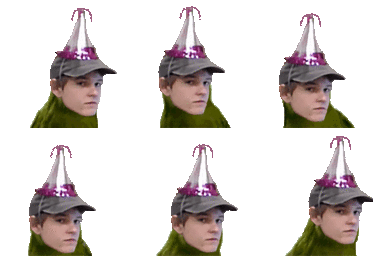
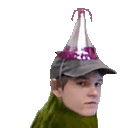
The Download button fetches the image from Discord's CDN and saves it with a proper filename. If your browser blocks that, the image opens in a new tab instead; right-click it and choose Save As.
Discord emoji downloads, explained
How do I download a Discord emoji?+
Paste a custom emoji straight into the box (type a colon in Discord, pick the emoji, then copy the text), or paste its ID or CDN link. This tool pulls the emoji ID, builds the direct image URL, and gives you a preview plus a download link for the full-size PNG or GIF.
How do I get a custom emoji, its ID, or its link?+
In a Discord message box type a backslash then the emoji, for example \:blob:, and send it. Discord prints the raw token, such as <a:b1nzy:392938283556143104> for an animated emoji. Paste that here. On desktop you can also right-click a custom emoji and choose Copy Link to get the full CDN URL.
Can I download animated Discord emojis as GIF?+
Yes. Animated emojis use the <a:name:id> token, and this tool detects the a prefix and adds a .gif download alongside the .png. If you only have the bare ID, turn on the animated option to also build the GIF link.
What image sizes can I download?+
Discord serves emojis from its CDN at 16, 32, 64, 128, 256, 512, and 1024 pixels using the size query parameter. Pick a size above and every link and preview updates to that resolution. Larger sizes are upscaled by the CDN, so quality is capped by the original upload.
Is this Discord emoji downloader free?+
Completely free with no login or account required. It only builds the public image URL for an emoji ID in your browser, so nothing you paste is sent to a server.
Related tools
All tools →Learn how it works
📖Discord Mention Syntax: Users, Roles, Channels and More5-min guideMore in Discord Tools.
Need a Discord bot that does exactly what your server needs?
The studio behind this free tool builds custom bots, game servers and websites.